Alerts on your phone and computer
Alerts pop up even when Site Patrol is closed. There's nothing to download, and phone alerts are on Pro.
iPhone and iPad
Open sitepatrol.app in Safari
It has to be Safari for this step.
Tap Share, then Add to Home Screen
Share is the square with an arrow, at the bottom of the screen (top right on iPad). Scroll down the list if you can't see Add to Home Screen, then tap Add.
Open Site Patrol from your Home Screen
Sign in, go to Alerts and tap Turn on alerts on this device. Tap Allow when your iPhone asks.
Apple only lets websites send alerts once they're on your Home Screen. Our iPhone app is coming soon and won't need this step.
Android
Open sitepatrol.app in Chrome and sign in
Tap the menu, then Install app, if you'd like it on your Home Screen. Alerts work either way.
Turn on alerts
Go to Alerts, tap Turn on alerts on this device and then Allow.
Mac and Windows
Open sitepatrol.app and sign in
In Chrome, Edge, Firefox or Safari.
Turn on alerts
Go to Alerts, click Turn on alerts on this device and allow notifications when your browser asks.
Check your computer's settings
If nothing pops up, make sure your browser is allowed to show notifications in your Mac's or Windows' notification settings, and that Focus or Do Not Disturb is off.
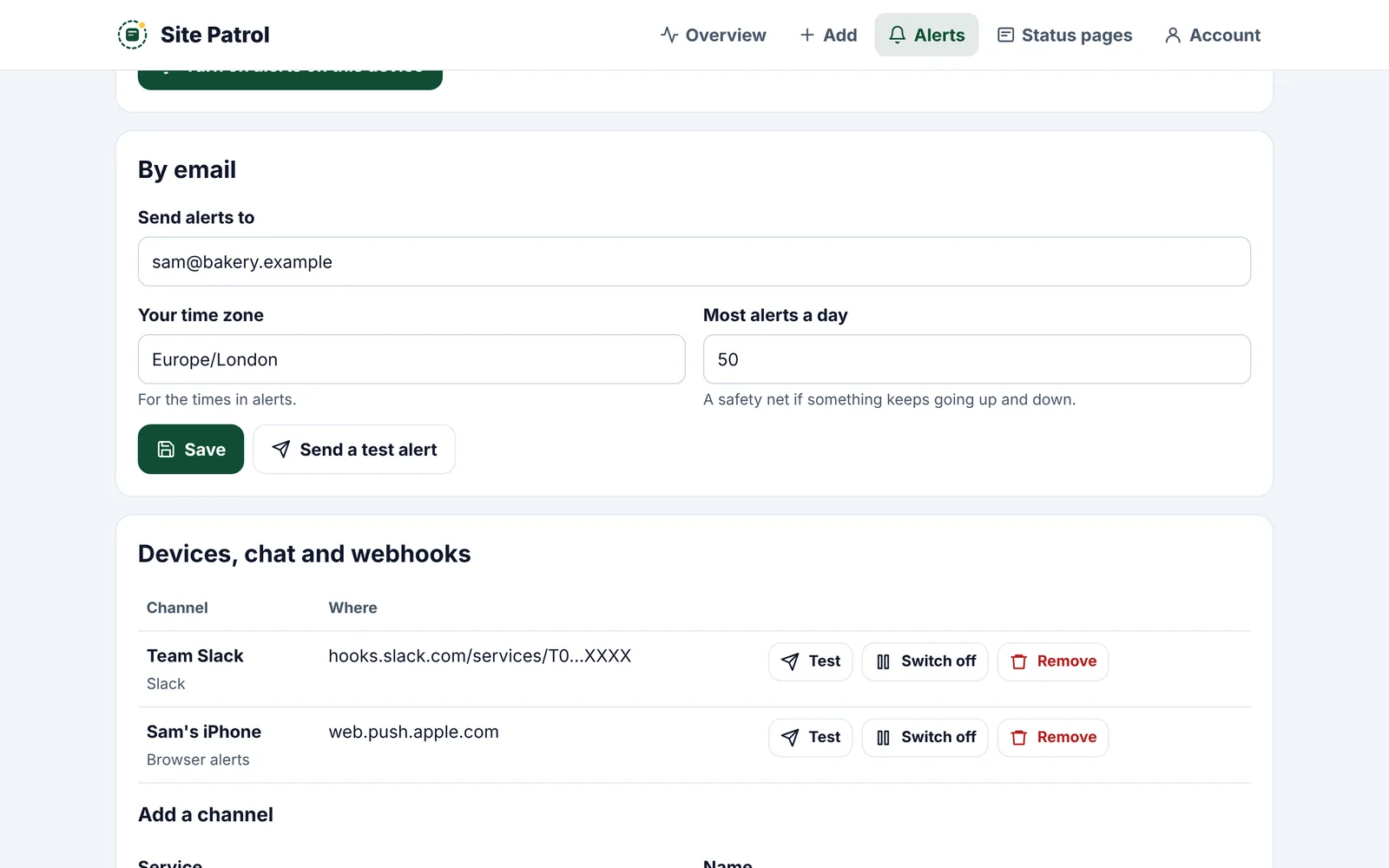
Use Send a test alert on the Alerts page to check everything works.